



The laser cutting process is a three-stage journey that transforms a digital idea into a physical object with incredible precision. The core stages are: 1. Digital Design & Preparation, where a vector file is created and optimized; 2. Physical Machine Setup, where the material is loaded and the laser’s power and speed settings are dialed in; and 3. Execution & Post-Processing, where the cut is performed under supervision and the part is finished.
This guide will walk you through every step of that journey. We won’t just tell you what to do; we’ll explain why you’re doing it, sharing the engineering principles and trade secrets that separate beginners from professionals. We’ll cover everything from designing for the laser’s kerf to the “magic numbers” for power and speed, ensuring you have the knowledge to create clean, precise, and successful parts every time.
The Core Principle: What is Laser Cutting?
Before we dive into the steps, it’s crucial to understand what’s happening inside the machine. At its heart, a laser cutter is a high-tech, computer-controlled tool that uses a focused beam of light to cut or engrave materials.
Think of it like a CNC magnifying glass. A laser tube generates an intense, coherent beam of light (usually infrared for CO2 lasers used on wood and plastics). A series of mirrors, known as a “beam delivery system,” guides this light to a focusing lens located in the cutting head. This lens concentrates all of that light energy into a single, microscopic point, creating immense power density.

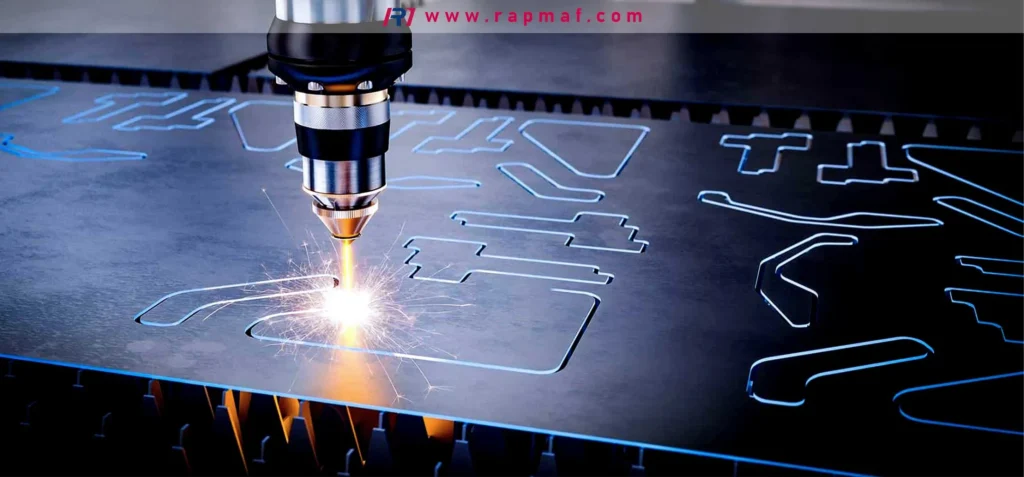
When this focused beam touches a material, its energy is absorbed, causing the material to rapidly heat up, melt, vaporize, or burn away. A jet of compressed air or gas, called an “assist gas,” blows this molten material out of the cut, leaving a clean, narrow slit known as the kerf.
By precisely controlling the movement of the cutting head (in X and Y axes) and modulating the laser’s power, the machine can follow the digital path laid out in your design file, cutting complex shapes or etching intricate designs with a typical precision of ±0.1 mm.
Stage 1: The Digital Blueprint (What Happens on the Computer)
Every successful laser cutting project begins not at the machine, but at the computer. This is where you translate your idea into a set of digital instructions the laser can understand. Garbage in, garbage out—a poorly prepared file will always result in a failed part.

Step 1.1: Conception & Design (CAD)
This is the creative phase. Your goal is to create a 2D vector design. Unlike raster images (like JPEGs or PNGs) which are made of pixels, vector files are made of mathematical paths, lines, and curves. The laser cutter follows these paths to make its cuts.
- Software Choices: You’ll need vector design software. Popular options include:
- For Professionals & Designers: Adobe Illustrator (AI), CorelDRAW.
- For Engineers: AutoCAD, Fusion 360, SolidWorks (you’ll export a 2D view or a DXF file from your 3D model).
- For Hobbyists & Beginners (Free): Inkscape, LightBurn (which is both design and machine control software).
- The Process: You will draw your design using lines and shapes. A critical rule is to use different colors to signify different operations. For example, it’s standard practice to use:
- Red lines for cutting through the material.
- Blue lines for vector engraving (scoring a line).
- Black-filled shapes for raster engraving (etching a surface).
Step 1.2: Designing for the Laser (Key Considerations)
You cannot design for a laser cutter the same way you design for a printer. You must account for the physical process of material removal.
- Kerf Compensation: The laser beam has a physical width (the kerf), meaning it removes a small amount of material as it cuts. This can be anywhere from 0.08mm to 1mm depending on the material and machine. If you’re designing parts that need to fit together perfectly (like a press-fit box), you must account for this. A 10mm wide slot designed in your software might become 10.2mm wide in reality. You may need to design the corresponding tab to be 10.2mm wide to get a snug fit.
- Avoiding Sharp Internal Corners: When cutting an inside corner of a shape, the circular beam can’t create a perfectly sharp point. This can be a problem for interlocking parts. The solution is to add a small circle or “dog bone” cutout in the corner, which allows the mating part to fit flush.
- Small Details & Fragility: If you design lines that are too close together, the material between them can become incredibly fragile, burn away, or break. As a rule of thumb, the distance between two cut lines should be at least equal to the thickness of the material.
- Text and Fonts: When using text, always convert it to paths or objects before sending it to the cutter. The laser cutter’s computer may not have the font you used, and it will be substituted, ruining your design. Converting it to paths turns the letters into simple shapes the machine can always understand.
Step 1.3: File Preparation & Export
Once your design is complete and optimized, the final step is a digital cleanup and export.
- Remove Duplicate Lines: If two lines are stacked directly on top of each other, the laser will cut the same path twice. This overheats the material, creates a wider kerf, increases the risk of fire, and wastes time. Most design software has a function to find and delete duplicates.
- Join All Segments: Ensure all your shapes are closed paths. If a square has a tiny gap in one corner, the machine will see it as a single long line, not a closed shape, and may not cut it correctly.
- Set the Correct Stroke Width: For cutting lines, always set the stroke width to the thinnest possible value (e.g., 0.01mm, 0.001 inches, or a “hairline”). This tells the software that this is a path to be cut, not a shape to be engraved.
- Export Format: The most common and reliable file formats for laser cutters are DXF (Drawing Exchange Format) and SVG (Scalable Vector Graphics). Some machines work directly with AI or PDF files.
With our digital blueprint perfected, cleaned, and exported, we are ready to leave the computer behind. The next step is to bridge the gap between the screen and the physical world. We will cover Stage 2: Machine Setup and Material Preparation, where we’ll choose the right material, dial in the critical power and speed settings, and run through the pre-flight checklist before making our first cut.
Stage 2: The Physical Setup (Bridging Digital to Reality)
With our perfected digital blueprint in hand, we leave the world of pixels and enter the world of photons. This stage is about preparing the machine and the material, a methodical process where precision and safety are paramount. Getting this right ensures that the perfect file you designed results in a perfect physical part.
Step 2.1: Material Selection and Preparation
The first decision you’ll make at the machine is choosing your material. A laser’s ability to cut something depends entirely on how the material absorbs its specific wavelength of light. A CO2 laser, for example, is excellent for organic materials but will reflect harmlessly off most raw metals.
- Common Laser-Friendly Materials:
- Woods: Plywood, MDF, Balsa, Hardwoods (Oak, Maple, Walnut)
- Plastics: Acrylic (Plexiglas), Delrin (POM), PETG
- Others: Leather, Fabric, Cardboard, Paper, Rubber (laser-safe types)
- CRITICAL: Forbidden Materials
Cutting the wrong material can release toxic, corrosive gases that can permanently damage the machine and, more importantly, cause severe harm to your health. Never cut these materials:- Polyvinyl Chloride (PVC): Releases pure chlorine gas when heated. This will instantly destroy the laser’s optics and electronics and is extremely toxic.
- ABS Plastic: Releases cyanide gas and creates a gooey, messy cut.
- Polycarbonate (Lexan): Tends to melt and catch fire, producing a discolored, sooty cut.
- Fiberglass or Carbon Fiber Composites: The glass dust is harmful to breathe and abrasive to the machine’s mechanics. The epoxy resins release toxic fumes.
- Material Preparation:
- Masking: Apply a layer of masking tape or specialized paper-based adhesive film to the surface of your material. This prevents “smoke flare” and burn marks from staining the surface around the cut lines, resulting in a much cleaner finish.
- Flatness: Ensure your material is as flat as possible. A warped piece of plywood will move in and out of the laser’s focal point, resulting in inconsistent cuts—sharp and clean in some areas, wide and charred in others. Use weights or magnets (on a steel honeycomb bed) to hold it down if necessary.
Step 2.2: Machine Preparation and Power-On
Before every job, run through a quick pre-flight checklist.
- Check the Optics: A dirty lens or mirror will absorb laser energy, which can cause it to overheat and crack. Give them a quick visual inspection.
- Confirm Ventilation: Ensure your exhaust fan is turned on and the ducting is clear. Proper airflow is non-negotiable for removing smoke and fumes.
- Power On: Turn on the machine. You will hear the fans start, and the machine’s motion system will perform a “homing” sequence, moving the cutting head to the top-left or top-right corner to establish its zero-zero (0,0) coordinate.
Step 2.3: The “Magic Numbers” – Setting Power and Speed
This is the most critical step in machine setup. You need to tell the laser how fast to move and how much power to output. These two settings work together to determine how much energy is delivered to the material.
- Speed: Measured as a percentage of the machine’s maximum speed. Higher speed delivers less energy to a given spot, resulting in a lighter cut or engrave.
- Power: Measured as a percentage of the laser’s maximum power. Higher power delivers more energy.
- The Relationship: For a clean cut, you need a balance. Too much power and too little speed will result in a wide, fiery, charred cut. Too little power and too much speed will fail to cut through the material at all.
Every machine and material is different. The only way to find the perfect settings is to perform a test. At RM, before we run any production batch, we perform a “test matrix” on a scrap piece of the exact same material—a grid of small squares cut at different power and speed combinations to find the sweet spot.
Here is a table of common starting points. You will need to adjust these for your specific machine and material thickness.
| Material | Thickness | Operation | Speed (%) | Power (%) | Notes |
|---|---|---|---|---|---|
| Cast Acrylic | 3mm (1/8″) | Cut | 15-25% | 70-80% | Slower speeds give a flame-polished edge. |
| Cast Acrylic | 3mm (1/8″) | Engrave | 80-100% | 15-25% | High speed and low power for a frosted look. |
| Birch Plywood | 3mm (1/8″) | Cut | 20-30% | 60-70% | Plywood density can vary; may require two passes. |
| Birch Plywood | 3mm (1/8″) | Engrave | 70-90% | 10-20% | Masking is highly recommended to prevent staining. |
| Cardboard | Single Wall | Cut | 50-60% | 25-35% | High risk of fire; use strong air assist. |
| Delrin (POM) | 6mm (1/4″) | Cut | 10-15% | 80-90% | Requires high power; produces a clean, sharp edge. |
Step 2.4: Loading the File and Setting the Origin
- Transfer the File: Load your DXF or SVG file into the laser cutter’s control software (like LightBurn or RDWorks).
- Assign Settings: Assign the power and speed settings you determined to the corresponding colors in your design file (e.g., Red lines = Cut settings, Blue lines = Engrave settings).
- Set the Origin: Using the machine’s control panel, move the laser head until its red aiming dot is positioned at the corner of your material where you want the cut to begin. This is your “origin point” or “job home.”
Step 2.5: Focusing the Laser
This is a step that beginners often forget, but it’s absolutely critical. The laser must be perfectly focused on the material’s top surface to achieve maximum power density. An out-of-focus beam is wider and weaker, resulting in poor cuts.
- How it’s done: Most machines use a manual focus tool—a small piece of acrylic or metal of a specific height. You place the tool on the material’s surface under the nozzle, then manually lower the machine’s bed until the side of the nozzle just touches the tool. Some advanced machines have an auto-focus probe that does this for you.
Step 2.6: The Final Checks
- Turn on Air Assist: The air assist pump blows a jet of air through the nozzle alongside the laser beam. It has two jobs: clearing debris from the cut to ensure a clean path for the laser, and extinguishing flames to prevent the material from catching fire.
- Run a Frame Test: Nearly all laser software has a “Frame” or “Trace” function. This will move the laser head (with the beam off) around the outer boundary of your design. This is your final chance to confirm that your entire design fits on the material and won’t cut off the edge or hit any clamps.
With the material loaded, the settings dialed in, the laser focused, and the final checks complete, the machine is humming and ready. We have successfully bridged the gap from digital to physical. In the final part, we will cover Stage 3: Execution and Post-Processing. We will press the “Start” button, monitor the job, and then learn the finishing techniques that turn a freshly cut part into a professional-grade product.
Stage 3: Execution and Post-Processing (The Final Transformation)
We have journeyed from a concept in our minds to a precise digital file, and from that file to a fully prepared, calibrated, and focused machine. This final stage is where the plan becomes reality—where photons meet material and our design is born into the physical world. This is the most satisfying part of the process, but it still requires attention to detail and a craftsman’s touch to achieve a truly professional result.
Step 3.1: The Moment of Truth – Executing the Job
With all the preparation complete, the final steps before cutting are simple but crucial.
- Close the Lid: The interlock safety system on any commercial laser cutter prevents the laser from firing when the lid is open. This is the single most important safety feature, as it contains the high-intensity light and any fumes.
- Press “Start”: With the lid securely closed, you can now send the job from the software or press the start button on the machine’s control panel.
The machine will immediately spring to life. You will hear the whir of the stepper motors as the gantry and cutting head move into position. The air assist and exhaust fans will be running, creating a steady hum. As the laser begins to fire, you’ll see an intensely bright point of light trace your design onto the material’s surface. For a material like wood, you’ll smell a pleasant, campfire-like aroma as the focused light vaporizes it.
CRITICAL: Never Leave a Running Laser Unattended
This is the number one rule of laser cutting. While the process is largely automated, you are operating a machine that uses a concentrated beam of energy to create intense heat. The risk of a flare-up or fire is always present, even with perfect settings. A small knot in a piece of plywood or an air pocket in cast acrylic can react unpredictably.
You must remain with the machine to monitor the entire job. Keep a properly rated fire extinguisher (typically CO2) within easy reach. At RM, our operators are trained to watch for excessive flaming and to pause the job immediately if anything looks amiss.
Step 3.2: The Cool-Down and Unloading
Once the machine has finished its final vector cut and the cutting head returns to its home position, the job is complete. But don’t open the lid just yet.
- Wait for Fume Extraction: Allow the exhaust fan to run for another 30-60 seconds. This ensures that any residual smoke and microscopic airborne particles are fully vented out of the machine’s enclosure, protecting both you and the machine’s optics.
- Unload Carefully: Once the air is clear, you can open the lid. Your design will now be a physical object, sitting within the “skeleton” of the original material sheet. Carefully lift out the cut pieces. They may still be warm to the touch. Remove the larger skeleton and any small scrap pieces from the honeycomb bed to prepare for the next job.
Step 3.3: Post-Processing – From Cut Part to Finished Product
A freshly cut part is rarely a finished part. The final step that separates hobbyist work from professional manufacturing is post-processing. This is where you clean, refine, and finish the part to meet its final specifications.
- Cleaning:
- Remove Masking: The first step is to peel away the protective masking tape. This should remove the vast majority of smoke staining, leaving a clean, crisp edge.
- Wipe Down: For any remaining residue, especially on engraved areas, a soft cloth dampened with isopropyl alcohol works wonders on materials like acrylic and most woods. This will remove any lingering haze or oils.
- Sanding and Edge Finishing:
- Wood: The edges of laser-cut wood will have a dark, slightly carbonized finish. Sometimes this is a desired aesthetic. If not, a light sanding is all that’s needed. Use a fine-grit sandpaper (220 or higher) to gently smooth the edges and faces, being careful not to round over the sharp corners unless desired.
- Acrylic: One of the magical properties of cutting cast acrylic is that a slow, hot cut produces a beautiful, “flame-polished” edge that is perfectly smooth and clear right off the machine. No sanding is required.
- Assembly:
The incredible precision of laser cutting makes it perfect for parts that need to fit together. This is where you’ll assemble your tab-and-slot boxes, press-fit gears onto shafts, or glue layered components together. A good design will result in a perfect, satisfyingly snug fit. - Finishing:
If your part requires a final finish, now is the time to apply it.- For Wood: This could involve applying a wood stain, a clear polyurethane or lacquer sealant for protection, or a coat of paint.
- For Acrylic: Acrylic is generally left as-is, but it can be painted (usually on the back for a look of depth) or have vinyl graphics applied.
Conclusion: The Three Pillars of a Perfect Laser Cut
The laser cutting process, from start to finish, is a powerful fusion of digital design and physical craftsmanship. As we’ve seen, a successful outcome doesn’t just happen when you press “Start”—it’s built on a foundation of methodical preparation that can be broken down into three distinct stages:
- Digital Preparation: Creating a clean, precise, and well-designed vector file is the blueprint. Errors at this stage are magnified in the final product.
- Physical Setup: This is where you translate the digital plan into machine instructions. Selecting the right material, dialing in the perfect power and speed, and focusing the beam are the critical steps that determine the quality of the cut.
- Execution and Finishing: This final stage is about safe operation and the craftsmanship of turning a raw part into a finished product through cleaning, sanding, and assembly.

Mastering this process unlocks a world of possibilities, enabling the rapid creation of everything from intricate prototypes to beautiful finished goods with a level of precision that is impossible to achieve by hand.
Why Choose RM for Your Laser Cutting Needs?
While understanding the laser cutting process is valuable, executing it at an industrial scale requires expertise and high-end equipment. At Rapid-MFG, we live and breathe this process every day. Our team of expert technicians operates a fleet of industrial-grade laser systems, and we have the deep material knowledge to select the perfect machine and settings for your project’s specific needs, ensuring a perfect result every time.
Frequently Asked Questions (FAQ)
1. What is the difference between laser cutting, engraving, and scoring?
- Cutting: The laser power and speed are set to fully vaporize the material along a path, cutting all the way through.
- Engraving (or Rastering): The laser moves back and forth like an inkjet printer, firing the beam at varying power levels to remove material from the surface and create images or filled-in areas.
- Scoring (or Vector Marking): This is the same as a vector cut, but the power is set too low to cut all the way through. It’s used to create fine, sharp lines for details or fold lines on materials like cardboard.
2. What materials should you absolutely never laser cut?
The most critical materials to avoid are those containing chlorine, like PVC (Polyvinyl Chloride), as they release corrosive and toxic chlorine gas. You should also avoid ABS (releases cyanide) and Polycarbonate (melts and burns poorly). Always verify your material is laser-safe.
3. How thick of a material can a laser cut?
This depends entirely on the power of the laser and the type of material. A typical 60-80W CO2 laser can reliably cut up to 9mm (3/8″) of acrylic or plywood. High-power industrial fiber lasers can cut through an inch or more of solid steel.
4. Is laser cutting expensive?
Laser cutting costs are primarily driven by machine time. Simple designs on thin materials can be very affordable. The cost increases with material thickness (requiring slower speeds), design complexity (more lines for the laser to travel), and engraving (which is generally slower than cutting).
5. Do I need special software for laser cutting?
You need vector design software like Adobe Illustrator, CorelDRAW, Inkscape (free), or a CAD program like AutoCAD or Fusion 360 to create your design files (typically DXF, SVG, or AI format). You will also use a laser control software, like LightBurn, to send the file to the machine.
References
- Trotec Laser. (2023). Safety Guide for Laser Machines. (An overview of the critical safety features and procedures from a leading laser system manufacturer).
- LightBurn Software. (2024). Material Settings and Testing Documentation. (The official documentation for the most popular laser control software, detailing the process of creating a test grid to find optimal settings).
- U.S. Occupational Safety and Health Administration (OSHA). Laser Hazards. (An authoritative source on the classification of laser hazards and required safety protocols in a professional environment).
Disclaimer
The information on this page is for informational purposes only. RM makes no representations or warranties, express or implied, as to the accuracy or completeness of this information. For any third-party services procured through the RM network, it is the buyer’s responsibility to specify and confirm performance parameters, tolerances, materials, and workmanship during the quotation process. For more detailed information, please do not hesitate to contact us.
RM: Your Precision Manufacturing Partner
RM is an industry leader in custom manufacturing solutions. With over 20 years of profound experience, we have become the trusted partner for more than 5,000 clients worldwide. We specialize in a comprehensive range of manufacturing services—including high-precision CNC machining, sheet metal fabrication, 3D printing, injection molding, and metal stamping—to provide you with a true one-stop-shop experience.
Our world-class facility is equipped with over 100 state-of-the-art 5-axis machining centers and operates in strict compliance with the ISO 9001:2015 quality management system. We are dedicated to providing solutions that blend speed, efficiency, and exceptional quality to customers in over 150 countries. From rapid prototyping to large-scale production, we promise delivery in as fast as 24 hours, helping you gain a competitive edge in the market. Choosing RM means selecting an efficient, reliable, and professional manufacturing ally.
Explore our capabilities today by visiting our website: www.rapmaf.com







25 Responses